

Handling Overpayments and Underpayments
Overview
When a customer makes a payment on Basqet, the system calculates the exact equivalent amount the customer must pay based on the currency they select at checkout.
Sometimes, the amount sent by the customer may differ from the required payment amount. This results in either an overpayment or an underpayment.
Merchants can configure how Basqet should handle these situations.
Overpayments
An overpayment occurs when a customer sends more than the required payment amount for a transaction. This refers to the exact equivalent value in the selected payment currency, not the originally quoted amount.
Default Behavior
By default, Basqet accepts overpayments and credits the full amount to the merchant’s balance. However, merchants can change this setting to automatically refund overpayments to customers.
Automatically Refunding Overpayments
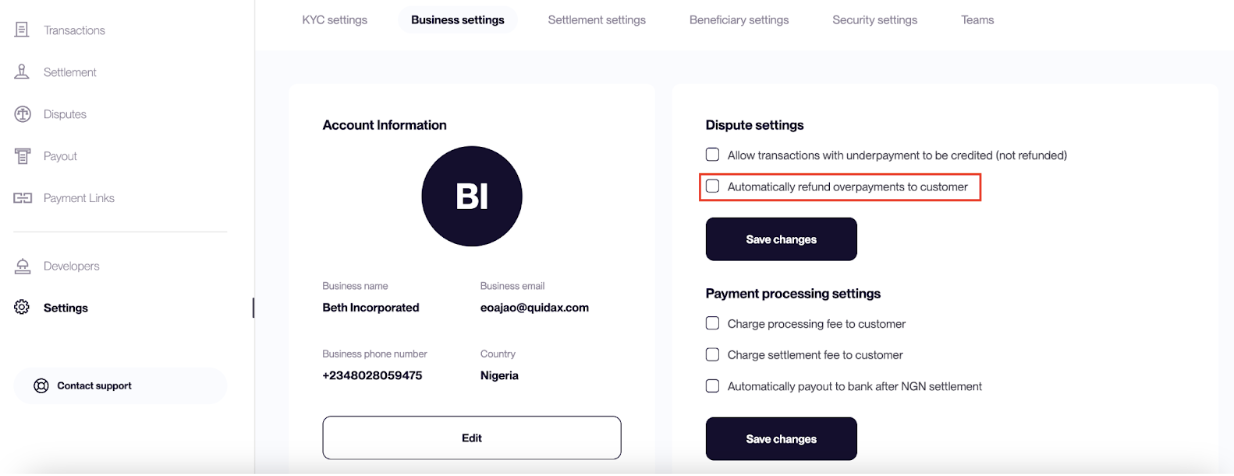
You can configure Basqet to automatically refund any excess payment sent by customers.
Steps
- Log in to your Basqet Dashboard
- Click Settings
- Select Business Settings
- Locate the Dispute Settings section
- Enable Automatically refund overpayments to customers
Once enabled, the excess on an overpayment made will be automatically refunded to the customer and your customer gets an email which requires them to fill a form with their desired refund destination address.
Underpayments
An underpayment occurs when a customer sends less than the required payment amount for a transaction. This also refers to the exact equivalent value of the selected payment currency at checkout.
Default Behavior
By default, Basqet refunds underpayments to customers, meaning the transaction will not be credited to the merchant’s account.
Merchants can change this behavior if they prefer to accept partial payments.
Accepting Underpayments
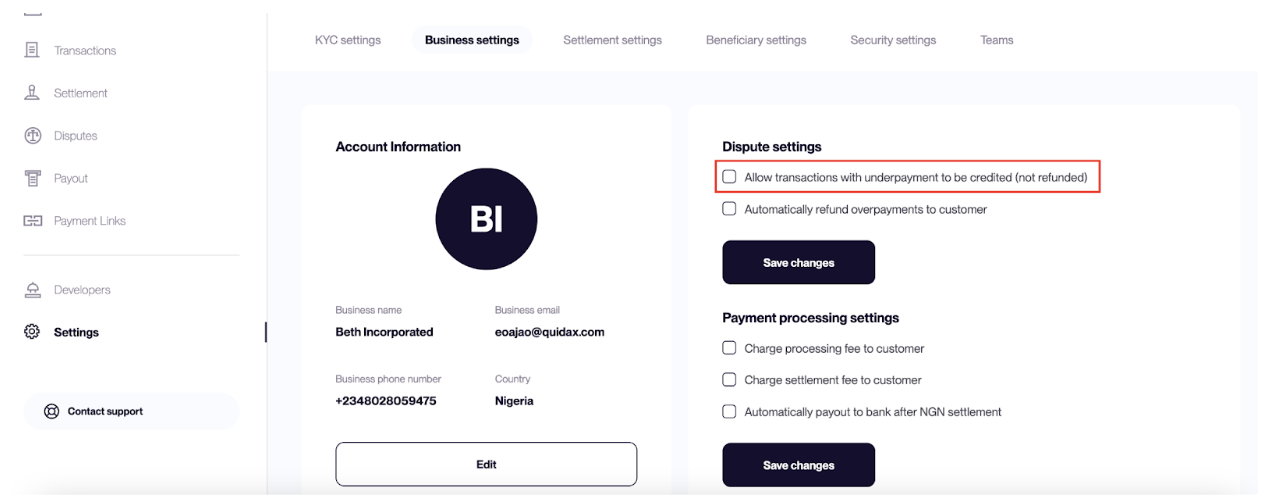
If enabled, underpaid transactions will still be credited to the merchant’s account, even if the payment is below the required amount.
Steps
- Log in to your Basqet Dashboard
- Click Settings
- Select Business Settings
- Locate the Dispute Settings section
- Enable Allow transactions with underpayments to be credited
When this option is enabled, underpayments will be accepted and credited to your account instead of being refunded.
Updated 7 months ago